Beautiful.ai · Template Pages · Batch 1

Word Cloud Template page: Before & After

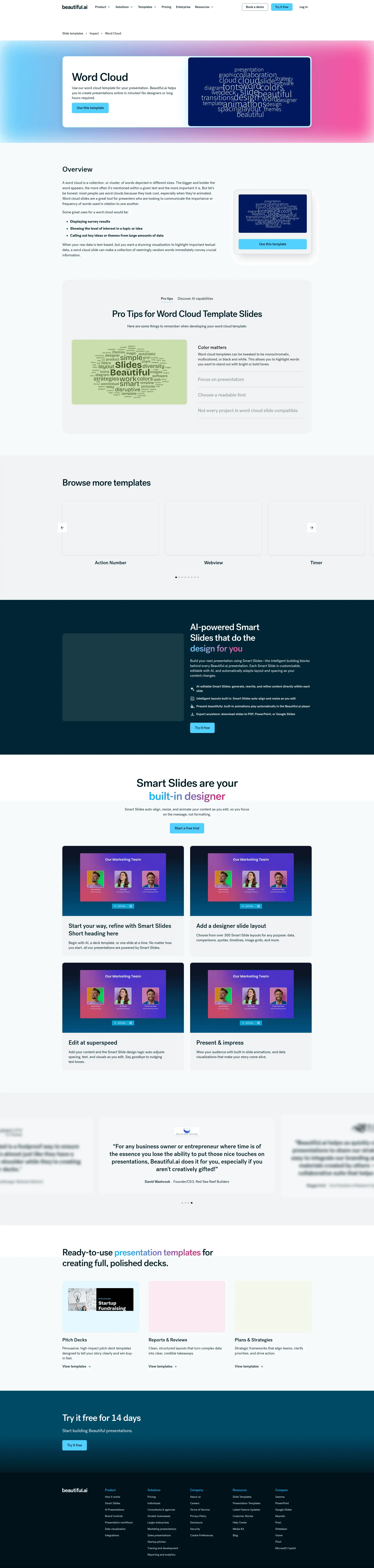
Two views of the same set of changes. Optimization Draft is the standard draft view, with the full before/after copy for every element in live page order and the paste-ready schema package. Annotated Before & After lays the same changes over a screenshot of the live page at beautiful.ai/templates/word-cloud, taken August 24; click a numbered marker to jump to its card. The full module spec behind every change is on the review hub.

Existing element, optimized New section, added Unchanged Click a marker to jump to its card.
Page URLhttps://www.beautiful.ai/templates/word-cloud
CategoryImpact (breadcrumb: Slide templates › Impact › Word Cloud)
Head Termword cloud template
GSC Baseline#10.5 for “word cloud template” · 216 impressions · 1 click (90 days)
Proposed Title TagWord Cloud Template for Presentations | Beautiful.ai (52 chars)
Proposed Meta DescriptionStart from a designer-made word cloud template, add your words by hand or let AI fill it in, then take the finished slide to PowerPoint or Google Slides. (153 chars)
SummaryThis is the batch’s snippet-problem page, ranking #10.5 for “word cloud template” with 216 impressions and one click in 90 days. The title and meta rewrite give the top-10 snippet a reason to be clicked, the H1 gains the head term, and the new modules add the template gallery, how-to, FAQ, and links that the ranking gallery pages carry.
OptimizedH1
Before

Word Cloud

After

Word Cloud Template

Why: The live H1 says “Word Cloud” and the title says “Slide Template.” The query with the demand is “word cloud template,” and at #10.5 this page is one small relevance gain from page one.

OptimizedHero copy
Before

Use our word cloud template for your presentation. Beautiful.ai helps you to create presentations online in minutes! No designers or long hours required.

After

A designer-made word cloud template that’s fully editable. Type your words in or let AI generate the cloud from a prompt, and Smart Slides keep it legible as you edit.

Why: The live subhead is the same boilerplate as the meta description. The new one is true to this page’s own AI block, which includes generating a word cloud from a prompt.

OptimizedCTA row
Before

Use this template

After

Use this template (kept, primary)  +  Fill it in with AI (new, secondary)

Why: “Use this template” matches what the searcher came for and stays primary. AI fill is the differentiator no printable or vector template site on this results page can offer, which earns it the secondary slot.

NewTemplate preview gallery
New

A band of static previews of this template in multiple slide themes, each opening the editor. The existing walkthrough video keeps its tile in the band and still plays on click.

Why: Canva and the other winners on this results page open onto galleries of editable variants. This page shows one cloud behind a video embed, which contributes nothing indexable.

NewHow-to section
New

How to use the word cloud template

  1. Open the template. “Use this template” opens it in the Beautiful.ai editor.
  2. Add your words. Type your terms in with the weight each one carries, upload a document or data file, or describe the topic and let AI fill the template.
  3. Make it yours. Adjust colors and labels; Smart Slides keep the layout aligned as you edit.
  4. Present or export. Share a live link, present in Beautiful.ai, or export to PowerPoint, Google Slides, or PDF.

Why: The winning template pages walk the searcher from template to finished slide in numbered steps. The steps mirror the real product flow, including AI generation as the built-in assist.

OptimizedOverview heading + placement
Before

H2 “Overview”, the first block after the hero.

After

H2 “What is a word cloud, and when should you use one?”. Same copy, kept in full, moved below the new template layer. One closing sentence is appended naming the editable word cloud template for presentations, since the kept copy never says the head term.

Why: The overview copy is real, useful content and stays. The heading becomes the question searchers actually ask, and the block moves down so the page leads with what the searcher came for: the template.

UnchangedOverview body (kept in full)
Unchanged

A word cloud is a collection, or cluster, of words depicted in different sizes. The bigger and bolder the word appears, the more often it’s mentioned within a given text and the more important it is. But let’s be honest: most people use word clouds because they look cool, especially when they’re animated. Word cloud slides are a great tool for presenters who are looking to communicate the importance or frequency of words used in relation to one another.

Some great uses for a word cloud would be:

  • Displaying survey results
  • Showing the level of interest in a topic or idea
  • Calling out key ideas or themes from large amounts of data

When your raw data is text-based, but you want a stunning visualization to highlight important textual data, a word cloud slide can make a collection of seemingly random words immediately convey crucial information.

Why: The overview copy is real, useful content and stays word for word; only the heading changes and the block moves below the new template layer.

OptimizedPro tips + AI capabilities tabs
Before

“Pro tips” and “Discover AI capabilities” render inside a tab component; the second tab’s content sits behind a click.

After

Both blocks kept in full, laid out as stacked sections. One copy edit: “Discover AI capabilities for word cloud” → “for word clouds.”

Why: The AI block on this page covers prompt generation and translation, real differentiators, but tabbed content that requires a click is easy for crawlers to miss.

UnchangedTab content (kept in full)
Unchanged

Pro Tips for Word Cloud Template Slides

Here are some things to remember when developing your word cloud template:

Color matters Word cloud templates can be tweaked to be monochromatic, multicolored, or black and white. This allows you to highlight words you want to stand out with bright or bold tones.

Focus on presentation Where your words appear, how much space is between them and thumbnail size all play a role in the impact of your word cloud slide. Animated word clouds are another way of adding more visual dynamism to your slide.

Choose a readable font Word cloud slides stack words in compelling and aesthetic ways. This makes some fonts harder to read than others. Choose a font that stands out but doesn’t become gibberish when flipped on its side.

Not every project is word cloud slide compatible A word cloud template slide is best used when trying to create a dynamic, visual impact. This makes them best suited to word text. Number oriented data is best displayed in different slide types, such as spreadsheets. Also, creating animated word clouds may require an animated word cloud generator to get into your presentation.

Discover AI capabilities for word cloud

With these AI-driven features, you can optimize your word cloud in seconds to create more engaging, effective visuals.

Generate an AI word cloud with a prompt Generate an AI word cloud in just a few clicks. Simply prompt the AI assistant with the topic or types of words you’re looking for and watch it come together automatically.

Refine or add new words Collaborate with the AI assistant to refine the words in your word cloud. The technology can give you new word suggestions based on your prompt.

Create a supporting image Tell the AI what you’re looking for and generate an image that complements your word cloud perfectly.

Translate the word cloud slide to a different language AI can translate the words in your word cloud to a different language that speaks to your audience.

Why: Every tip and AI capability above ships unchanged; only the layout un-nests so the copy is visible without a click.

Optimized“Browse more templates” carousel
Before

Nine autoplaying Vimeo embeds from the Impact category: Action Number, Webview, Timer, World Map, Countdown, Quotation, Full Video, Headline Slide, plus a Word Cloud card that links back to this very page.

After

Static image cards with descriptive text links, “Countdown template,” “World map template”, with videos still available on click, and the self-referencing card dropped.

Why: Nine autoplaying embeds dominate this page’s load cost, and the self-link wastes a slot. Image cards with real anchor text give Google crawlable evidence of breadth at a fraction of the weight.

NewFAQ section (+ FAQPage schema)
New

Word cloud template FAQ

Is the word cloud template editable?

Yes. The template is a fully editable Smart Slide: add or remove words, reweight them, and restyle the cloud, and the layout adapts automatically as you work.

How do I add my own words?

Open the template and type your terms in with the weight each one carries, or upload a document or data file and Beautiful.ai places your words on the slide.

Can AI fill it in for me?

Yes. Describe the topic or paste the text you want visualized, and the AI assistant fills the template with weighted terms in place. You can keep editing everything afterward.

Can I export to PowerPoint or Google Slides?

Yes. Slides export to PowerPoint, Google Slides, or PDF, and you can also present or share a live link directly from Beautiful.ai.

When should I use a word cloud?

A word cloud works best when your raw data is text: survey results, the level of interest in a topic, or the key themes in a large amount of feedback. The bigger and bolder a word appears, the more often it shows up in the source text.

Why: At a 1% click-through on a top-10 position, this page’s problem is the snippet, and FAQ answers are extra surface for the long-tail question queries Search Console already records. No answer claims the template is free; the product is trial-based.

NewProgrammatic internal links
New

“More impact slide templates”: every Impact-category sibling linked with a descriptive anchor (Countdown template · World map template · Quotation slide template · Headline slide template …), plus the slide templates hub and the presentation maker page.

Why: The carousel’s “View template” labels are the only links between these sibling pages today, and they carry no keyword signal. A rule-generated module fixes that mechanically across the library.

UnchangedEverything below the carousel
Unchanged

The Smart Slides band, testimonials, template gallery band, and footer CTA below the carousel are site-wide template chrome, shared by every page on the site, and are unchanged.

Title tagmissing → carries the head term
Meta descriptioncarries the head term → carries the head term
H1missing → carries the head term
How-to H2 + HowTo schemamissing → carries the head term
FAQ H2 + FAQPage schemamissing → carries the head term
BreadcrumbList + HowTo + FAQPage + VideoObject JSON-LD · generated from this page’s slots
[
  {
    "@context": "https://schema.org",
    "@type": "BreadcrumbList",
    "itemListElement": [
      {
        "@type": "ListItem",
        "position": 1,
        "name": "Slide templates",
        "item": "https://www.beautiful.ai/slide-templates"
      },
      {
        "@type": "ListItem",
        "position": 2,
        "name": "Impact"
      },
      {
        "@type": "ListItem",
        "position": 3,
        "name": "Word Cloud Template",
        "item": "https://www.beautiful.ai/templates/word-cloud"
      }
    ]
  },
  {
    "@context": "https://schema.org",
    "@type": "HowTo",
    "name": "How to use the word cloud template",
    "step": [
      {
        "@type": "HowToStep",
        "position": 1,
        "name": "Open the template.",
        "text": "“Use this template” opens it in the Beautiful.ai editor."
      },
      {
        "@type": "HowToStep",
        "position": 2,
        "name": "Add your words.",
        "text": "Type your terms in with the weight each one carries, upload a document or data file, or describe the topic and let AI fill the template."
      },
      {
        "@type": "HowToStep",
        "position": 3,
        "name": "Make it yours.",
        "text": "Adjust colors and labels; Smart Slides keep the layout aligned as you edit."
      },
      {
        "@type": "HowToStep",
        "position": 4,
        "name": "Present or export.",
        "text": "Share a live link, present in Beautiful.ai, or export to PowerPoint, Google Slides, or PDF."
      }
    ]
  },
  {
    "@context": "https://schema.org",
    "@type": "FAQPage",
    "mainEntity": [
      {
        "@type": "Question",
        "name": "Is the word cloud template editable?",
        "acceptedAnswer": {
          "@type": "Answer",
          "text": "Yes. The template is a fully editable Smart Slide: add or remove words, reweight them, and restyle the cloud, and the layout adapts automatically as you work."
        }
      },
      {
        "@type": "Question",
        "name": "How do I add my own words?",
        "acceptedAnswer": {
          "@type": "Answer",
          "text": "Open the template and type your terms in with the weight each one carries, or upload a document or data file and Beautiful.ai places your words on the slide."
        }
      },
      {
        "@type": "Question",
        "name": "Can AI fill it in for me?",
        "acceptedAnswer": {
          "@type": "Answer",
          "text": "Yes. Describe the topic or paste the text you want visualized, and the AI assistant fills the template with weighted terms in place. You can keep editing everything afterward."
        }
      },
      {
        "@type": "Question",
        "name": "Can I export to PowerPoint or Google Slides?",
        "acceptedAnswer": {
          "@type": "Answer",
          "text": "Yes. Slides export to PowerPoint, Google Slides, or PDF, and you can also present or share a live link directly from Beautiful.ai."
        }
      },
      {
        "@type": "Question",
        "name": "When should I use a word cloud?",
        "acceptedAnswer": {
          "@type": "Answer",
          "text": "A word cloud works best when your raw data is text: survey results, the level of interest in a topic, or the key themes in a large amount of feedback. The bigger and bolder a word appears, the more often it shows up in the source text."
        }
      }
    ]
  },
  {
    "@context": "https://schema.org",
    "@type": "VideoObject",
    "name": "Word Cloud Template",
    "description": "Walkthrough of the word cloud template Smart Slide in Beautiful.ai.",
    "embedUrl": "https://player.vimeo.com/video/392835646"
  }
]
Why: All four blocks generate from the same per-page content slots, so they scale mechanically across all 236 pages. The existing schema block’s url host gets aligned to www.beautiful.ai. The VideoObject covers the kept hero video; its thumbnailUrl comes from the client’s own video-indexing pipeline, which owns poster assets.

The Google result today · markers 1–2
🎨
Beautiful.ai
https://www.beautiful.ai › templates › word-cloud
Word Cloud Slide Template | Beautiful.ai | Beautiful.ai 1
Use our word cloud template for your presentation. Beautiful.ai helps you to create presentations online in minutes! No designers or long hours required. 2
https://www.beautiful.ai/templates/word-cloud
Full screenshot of the live Word Cloud template page with numbered annotation markers
3
4
5
6
7Template preview gallery: added here
8“How to use the word cloud template”: added here
9
10
11
12Word cloud template FAQ: added here
13Programmatic template links: added here
Everything below (Smart Slides, testimonials, footer) is site-wide and unchanged