Beautiful.ai · Template Pages · Batch 1

Timeline Template page: Before & After

Two views of the same set of changes. Optimization Draft is the standard draft view, with the full before/after copy for every element in live page order and the paste-ready schema package. Annotated Before & After lays the same changes over a screenshot of the live page at beautiful.ai/templates/timeline, taken August 24; click a numbered marker to jump to its card. The full module spec behind every change is on the review hub.

Existing element, optimized New section, added Unchanged Click a marker to jump to its card.
Page URLhttps://www.beautiful.ai/templates/timeline
CategoryDiagrams & Timeline (breadcrumb: Slide templates › Diagrams & Timeline › Timeline)
Head Termtimeline template
GSC Baseline#103 for “timeline template” · 1 impression (90 days)
Proposed Title TagTimeline Template for Presentations | Beautiful.ai (50 chars)
Proposed Meta DescriptionStart from a designer-made timeline template, add your milestones by hand or let AI fill it in, then take the finished slide to PowerPoint or Google Slides. (156 chars)
SummaryThe live title’s first separator is a lowercase “l” rather than a pipe, and the page is effectively invisible at #103 with one impression in 90 days. The rewrite fixes the title, carries the head term through H1 and meta, and adds the template gallery, how-to, FAQ, and links modules.
OptimizedH1
Before

Timeline

After

Timeline Template

Why: The live H1 is one word, “Timeline.” At #103 the page needs every relevance signal, starting with the exact head term in the headline.

OptimizedHero copy
Before

Use our timeline slide template for your presentation. Beautiful.ai helps you to create presentations in minutes! No designers or long hours required.

After

A designer-made timeline template that’s fully editable. Add your milestones by hand or let AI generate the timeline from a prompt, and Smart Slides keep the spacing even as you edit.

Why: The live subhead is the boilerplate. The new one is true to this page’s own AI block, which includes generating a timeline from a prompt, and to the pro tip about spacing.

OptimizedCTA row
Before

Use this template

After

Use this template (kept, primary)  +  Fill it in with AI (new, secondary)

Why: “Use this template” matches what the searcher came for and stays primary. AI fill is the differentiator no printable or vector template site on this results page can offer, which earns it the secondary slot.

NewTemplate preview gallery
New

A band of static previews of this template in multiple slide themes, each opening the editor. The existing walkthrough video keeps its tile in the band and still plays on click.

Why: Every winner on the “timeline template” results page opens onto a gallery of editable variants; this page shows one timeline behind a video embed.

NewHow-to section
New

How to use the timeline template

  1. Open the template. “Use this template” opens it in the Beautiful.ai editor.
  2. Add your milestones. Type your dates, phases, and the events that mark them in, upload a document or data file, or describe the plan and let AI fill the template.
  3. Make it yours. Adjust colors and labels; Smart Slides keep the layout aligned as you edit.
  4. Present or export. Share a live link, present in Beautiful.ai, or export to PowerPoint, Google Slides, or PDF.

Why: The ranking template pages all include a numbered path from template to finished slide. Every step is a documented product behavior.

OptimizedOverview heading + placement
Before

H2 “Overview”, the first block after the hero.

After

H2 “What is a timeline, and when should you use one?”. Same copy, kept in full, moved below the new template layer. One closing sentence is appended naming the editable timeline template for presentations, since the kept copy never says the head term.

Why: The overview copy is real, useful content and stays. The heading becomes the question searchers actually ask, and the block moves down so the page leads with what the searcher came for: the template.

UnchangedOverview body (kept in full)
Unchanged

A timeline is a visual representation marking all major events over a period of time. Timeline slides have many versatile uses—everything from project plans, to status updates, to “next steps” can be communicated using a timeline. They are most often used for business purposes, but can also be useful for better illustrating scientific and other highly technical processes.

Timeline slides help us to conceptualize past, present and future events. If you want to give your audience confidence that a plan or a process has been thoroughly vetted and is well-articulated, a timeline is very effective.

More great uses for a timeline include:

  • Keeping teams up to speed on project deadlines
  • Arrange nonlinear events in chronological order
  • Reflect historical data visually

Why: The overview copy is real, useful content and stays word for word; only the heading changes and the block moves below the new template layer.

OptimizedPro tips + AI capabilities tabs
Before

“Pro tips” and “Discover AI capabilities” render inside a tab component; the second tab’s content sits behind a click.

After

Both blocks kept in full, laid out as stacked sections. One copy edit: “Discover AI capabilities for timeline” → “for timelines.”

Why: The AI block covers prompt generation, document context, and speaker notes, but the tab hides it from crawlers.

UnchangedTab content (kept in full)
Unchanged

Pro Tips for Timeline slides

Here are some things to remember when developing your timeline slide:

Be efficient with space Timeline projects often space multiple data points on a single line. This requires thought organization and perfect content placement. If thoughts overlap, your audience won’t be able to distinguish them from one another.

Use timeline slides for projects with a history Timelines are meant to depict an order of events. Projects which are brand new, or information without precedent or background, don’t yet require a timeline.

Explore different types of timelines There are multiple types of timelines, such as horizontal, vertical, interactive, and chronological. The one you choose depends on what you’re trying to express to your audience.

Organize your timeline with spans Group milestones into time periods, phases of a project or steps in a process. Spans help guide your audience through each stage of your timeline journey—beginning, middle and end.

Discover AI capabilities for timeline

With these AI-driven features, you can optimize your timeline slide in seconds to create more engaging, effective visuals.

Generate an AI timeline with a prompt Generate an AI timeline in just a few clicks. Simply prompt the AI assistant with the type of timeline you’re looking to create and watch it come together automatically.

Add context with AI Add additional context to your prompt by uploading documents, or data, and the AI will use that to generate a timeline that fits your story.

Refine copy on a timeline slide Leverage AI to edit text within a timeline slide, no ChatGPT needed. AI can help create new text with a prompt, re-write existing text, and expand or shorten text length.

Use AI to create speaker notes Collaborate with the AI assistant to craft the perfect narrative. The technology can generate speaker notes from scratch pulling from the content on your slide.

Why: Every tip and AI capability above ships unchanged; only the layout un-nests so the copy is visible without a click.

Optimized“Browse more templates” carousel
Before

Fifteen autoplaying Vimeo embeds from the Diagrams & Timeline category, the same set as the flow chart page, each with a generic “View template” link.

After

Static image cards with descriptive text links, “Flow chart template,” “Customer journey map template”, with videos still available on click.

Why: Fifteen autoplaying embeds add load cost to a page with one impression in 90 days, with nothing indexable in return. Static cards keep the breadth and cut the weight.

NewFAQ section (+ FAQPage schema)
New

Timeline template FAQ

Is the timeline template editable?

Yes. The template is a fully editable Smart Slide: add milestones, shift dates, and relabel phases, and the spacing stays even as you work.

How do I add my own milestones?

Open the template and type your dates, phases, and the events that mark them in, or upload a document or data file and Beautiful.ai places your milestones on the slide.

Can AI fill it in for me?

Yes. Describe the plan or period you are mapping, and the AI assistant fills the template with dates, phases, and events in place. You can keep editing everything afterward.

Can I export to PowerPoint or Google Slides?

Yes. Slides export to PowerPoint, Google Slides, or PDF, and you can also present or share a live link directly from Beautiful.ai.

When should I use a timeline?

A timeline works best for marking major events over a period of time: project deadlines, nonlinear events arranged in chronological order, or historical data shown visually. It gives an audience confidence that a plan has been thoroughly vetted.

Why: Answers are product facts in this page’s own nouns, powering FAQPage schema (marker 3). No answer claims the template is free.

NewProgrammatic internal links
New

“More diagram & timeline templates”: every same-category sibling linked with a descriptive anchor (Flow chart template · Process diagram template · Calendar slide template · Kanban template …), plus the slide templates hub and the presentation maker page.

Why: From #103, internal links with head-term anchors are the fastest authority this page can receive. Today it gets none.

UnchangedEverything below the carousel
Unchanged

The Smart Slides band, testimonials, template gallery band, and footer CTA below the carousel are site-wide template chrome, shared by every page on the site, and are unchanged.

Title tagmissing → carries the head term
Meta descriptionmissing → carries the head term
H1missing → carries the head term
How-to H2 + HowTo schemamissing → carries the head term
FAQ H2 + FAQPage schemamissing → carries the head term
BreadcrumbList + HowTo + FAQPage + VideoObject JSON-LD · generated from this page’s slots
[
  {
    "@context": "https://schema.org",
    "@type": "BreadcrumbList",
    "itemListElement": [
      {
        "@type": "ListItem",
        "position": 1,
        "name": "Slide templates",
        "item": "https://www.beautiful.ai/slide-templates"
      },
      {
        "@type": "ListItem",
        "position": 2,
        "name": "Diagrams & Timeline"
      },
      {
        "@type": "ListItem",
        "position": 3,
        "name": "Timeline Template",
        "item": "https://www.beautiful.ai/templates/timeline"
      }
    ]
  },
  {
    "@context": "https://schema.org",
    "@type": "HowTo",
    "name": "How to use the timeline template",
    "step": [
      {
        "@type": "HowToStep",
        "position": 1,
        "name": "Open the template.",
        "text": "“Use this template” opens it in the Beautiful.ai editor."
      },
      {
        "@type": "HowToStep",
        "position": 2,
        "name": "Add your milestones.",
        "text": "Type your dates, phases, and the events that mark them in, upload a document or data file, or describe the plan and let AI fill the template."
      },
      {
        "@type": "HowToStep",
        "position": 3,
        "name": "Make it yours.",
        "text": "Adjust colors and labels; Smart Slides keep the layout aligned as you edit."
      },
      {
        "@type": "HowToStep",
        "position": 4,
        "name": "Present or export.",
        "text": "Share a live link, present in Beautiful.ai, or export to PowerPoint, Google Slides, or PDF."
      }
    ]
  },
  {
    "@context": "https://schema.org",
    "@type": "FAQPage",
    "mainEntity": [
      {
        "@type": "Question",
        "name": "Is the timeline template editable?",
        "acceptedAnswer": {
          "@type": "Answer",
          "text": "Yes. The template is a fully editable Smart Slide: add milestones, shift dates, and relabel phases, and the spacing stays even as you work."
        }
      },
      {
        "@type": "Question",
        "name": "How do I add my own milestones?",
        "acceptedAnswer": {
          "@type": "Answer",
          "text": "Open the template and type your dates, phases, and the events that mark them in, or upload a document or data file and Beautiful.ai places your milestones on the slide."
        }
      },
      {
        "@type": "Question",
        "name": "Can AI fill it in for me?",
        "acceptedAnswer": {
          "@type": "Answer",
          "text": "Yes. Describe the plan or period you are mapping, and the AI assistant fills the template with dates, phases, and events in place. You can keep editing everything afterward."
        }
      },
      {
        "@type": "Question",
        "name": "Can I export to PowerPoint or Google Slides?",
        "acceptedAnswer": {
          "@type": "Answer",
          "text": "Yes. Slides export to PowerPoint, Google Slides, or PDF, and you can also present or share a live link directly from Beautiful.ai."
        }
      },
      {
        "@type": "Question",
        "name": "When should I use a timeline?",
        "acceptedAnswer": {
          "@type": "Answer",
          "text": "A timeline works best for marking major events over a period of time: project deadlines, nonlinear events arranged in chronological order, or historical data shown visually. It gives an audience confidence that a plan has been thoroughly vetted."
        }
      }
    ]
  },
  {
    "@context": "https://schema.org",
    "@type": "VideoObject",
    "name": "Timeline Slide template",
    "description": "Walkthrough of the timeline template Smart Slide in Beautiful.ai.",
    "embedUrl": "https://player.vimeo.com/video/392834245"
  }
]
Why: All four blocks generate from the same per-page content slots, so they scale mechanically across all 236 pages. The existing schema block’s url host gets aligned to www.beautiful.ai. The VideoObject covers the kept hero video; its thumbnailUrl comes from the client’s own video-indexing pipeline, which owns poster assets.

The Google result today · markers 1–2
🎨
Beautiful.ai
https://www.beautiful.ai › templates › timeline
Timeline Slide Template l Beautiful.ai | Beautiful.ai 1
Use our timeline slide template for your presentation. Beautiful.ai helps you to create presentations in minutes! No designers or long hours required. 2
https://www.beautiful.ai/templates/timeline
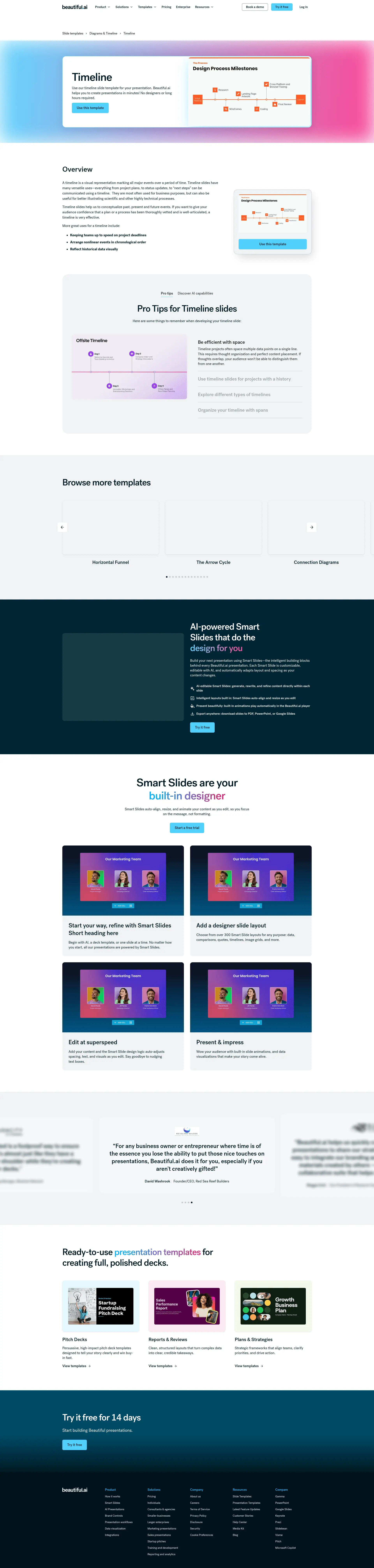
Full screenshot of the live Timeline template page with numbered annotation markers
3
4
5
6
7Template preview gallery: added here
8“How to use the timeline template”: added here
9
10
11
12Timeline template FAQ: added here
13Programmatic template links: added here
Everything below (Smart Slides, testimonials, footer) is site-wide and unchanged