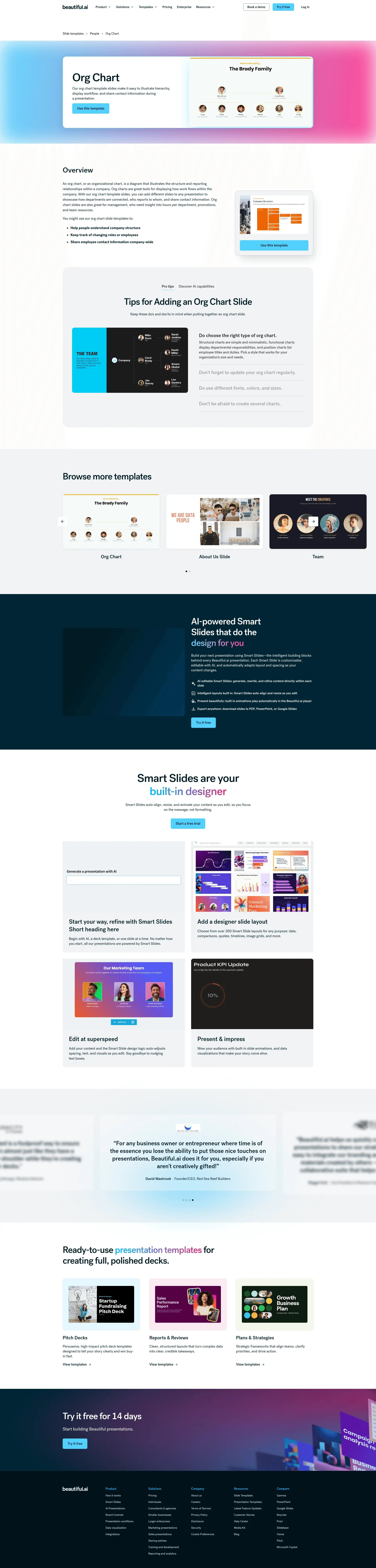
Two views of the same set of changes. Optimization Draft is the standard draft view, with the full before/after copy for every element in live page order and the paste-ready schema package. Annotated Before & After lays the same changes over a screenshot of the live page at beautiful.ai/templates/org-chart, taken August 24; click a numbered marker to jump to its card. The full module spec behind every change is on the review hub.
| Page URL | https://www.beautiful.ai/templates/org-chart |
| Category | People (breadcrumb: Slide templates › People › Org Chart) |
| Head Term | org chart template |
| GSC Baseline | #20.9 for “org chart template” · 342 impressions · 2 clicks (90 days) |
| Proposed Title Tag | Org Chart Template for Presentations | Beautiful.ai (51 chars) |
| Proposed Meta Description | Start from a designer-made org chart template, add your team by hand or let AI fill it in, then take the finished slide to PowerPoint or Google Slides. (151 chars) |
| Summary | The page ranks #20.9 for “org chart template” with 342 impressions and 2 clicks over 90 days, while the H1 never says “template” and the title carries the doubled “| Beautiful.ai” suffix. The draft puts the head term in the title and H1, layers the template experience above the kept overview, adds the how-to, FAQ, and links modules, and fixes the schema package. |
Why: The live H1 never says the word the searcher typed. The page earns its impressions on “org chart template” (342 in 90 days, two clicks) while ranking #20.9, so the exact head term goes into the headline.
Our org chart template slides make it easy to illustrate hierarchy, display workflow, and share contact information during a presentation.
A designer-made org chart template that’s fully editable. Add your names, titles, and reporting lines by hand or let AI fill them in, and Smart Slides keep the hierarchy aligned as you edit.
Why: The live subhead repeats the meta description word for word. The new one says what this template actually holds: people, titles, and reporting lines, with AI fill and Smart Slides as the parts no printable org chart offers.
Use this template
Use this template (kept, primary) + Fill it in with AI (new, secondary)
Why: “Use this template” matches what the searcher came for and stays primary. AI fill is the differentiator no printable or vector template site on this results page can offer, which earns it the secondary slot.
A band of static previews of this template in multiple slide themes, each opening the editor. The existing walkthrough video keeps its tile in the band and still plays on click.
Why: Every winner on the “org chart template” results page opens onto a gallery of editable variants; this page shows a single example behind a video embed. Static previews give searchers something to evaluate and give Google crawlable image content.
Why: The ranking template pages all walk the searcher from template to finished slide in numbered steps; none of the 236 Beautiful.ai pages does. Every step is a documented product behavior, so nothing is invented.
Why: The overview copy is real, useful content and stays. The heading becomes the question searchers actually ask, and the block moves down so the page leads with what the searcher came for: the template.
An org chart, or an organizational chart, is a diagram that illustrates the structure and reporting relationships within a company. Org charts are great tools for displaying how work flows within the company. With our org chart template slides, you can add different slides to any presentation to showcase how departments are connected, who reports to whom, and share contact information. Org chart slides are also great for management, who need insight into hours per department, promotions, and team resources.
You might use our org chart slide templates to:
Why: The overview copy is real, useful content and stays word for word; only the heading changes and the block moves below the new template layer.
“Pro tips” and “Discover AI capabilities” render inside a tab component; the second tab’s content sits behind a click.
Both blocks kept in full, laid out as stacked sections. One copy edit: “Discover AI capabilities for Org Chart” → “for org charts.”
Why: The AI block covers role summarization and team overviews, content no static chart tool has, but tabbed content that requires a click is easy for crawlers to miss.
Keep these do’s and don’ts in mind when putting together an org chart slide.
Do choose the right type of org chart. Structural charts are simple and minimalistic, functional charts display departmental responsibilities, and position charts list employee titles and duties. Pick a style that works for your organization’s size and needs.
Don’t forget to update your org chart regularly. Employees will check your org chart when they need important information. Check on it regularly so they’re not using outdated information.
Do use different fonts, colors, and sizes. Make your org chart easy to read by adjusting the fonts, colors, and sizes.
Don’t be afraid to create several charts. One giant org chart can be overwhelming to look at. Create smaller org chart slides broken down by division or department if needed.
With these AI-powered features, you can go beyond a static org chart slide and create engaging, impactful content in seconds.
Refine copy on an org chart Leverage AI to add supporting text on the slide, no ChatGPT needed. The AI assistant can help create new text with a prompt, re-write existing text, and expand or shorten text length in a side bar.
AI-enhanced role summarization For each team member or role node in the chart, Beautiful.ai can help auto-generate or refine descriptions based on job title, department, or function.
Create a supporting AI image Add an image to complement the org chart slide. Tell the AI what you’re looking for and generate an image that’s unique to your story.
Team or department overviews Above or alongside the org chart, the AI assistant can help generate a 1–2 sentence overview that highlights the team’s mission, scope, or recent priorities.
Why: Every tip and AI capability above ships unchanged; only the layout un-nests so the copy is visible without a click.
A three-card carousel of autoplaying Vimeo embeds: About Us Slide, Team, and this very page; the Org Chart card links back to itself.
Static image cards with descriptive text links, “About Us slide template,” “Team slide template”, with videos still available on click, and the self-referencing card dropped.
Why: A card that links a page to itself wastes the slot and the link equity. With only two real siblings in the band, the new links module below (marker 13) carries the rest of the People-category set.
Is the org chart template editable?
Yes. The template is a fully editable Smart Slide: add or remove people, edit names and titles, and redraw reporting lines, and the layout keeps the hierarchy aligned as you work.
How do I add my own team?
Open the template and type your names, titles, and reporting lines in, or upload a document or data file and Beautiful.ai places your team on the slide.
Can AI fill it in for me?
Yes. Describe your team and how it is organized, and the AI assistant fills the template with names, roles, and reporting lines in place. You can keep editing everything afterward.
Can I export to PowerPoint or Google Slides?
Yes. Slides export to PowerPoint, Google Slides, or PDF, and you can also present or share a live link directly from Beautiful.ai.
When should I use an org chart?
An org chart works best when people need to see structure at a glance: how departments connect, who reports to whom, and where to find a colleague’s contact information. It also helps management track changing roles, promotions, and team resources.
Why: The “when should I use” answer derives from this page’s kept overview copy, so it stays unique to the page. No answer calls the template or the product free; the product is trial-based and the copy competes on design quality and AI fill instead.
“More people & team templates”: every People-category sibling linked with a descriptive anchor (About Us slide template · Team slide template), plus the slide templates hub and the presentation software page.
Why: Today the only path between sibling template pages is the carousel’s “View template” labels, which carry no keyword signal. A rule-generated module makes the library crawl like a connected system.
The Smart Slides band, testimonials, template gallery band, and footer CTA below the carousel are site-wide template chrome, shared by every page on the site, and are unchanged.
| Title tag | carries the head term → carries the head term |
| Meta description | carries the head term → carries the head term |
| H1 | missing → carries the head term |
| How-to H2 + HowTo schema | missing → carries the head term |
| FAQ H2 + FAQPage schema | missing → carries the head term |
[
{
"@context": "https://schema.org",
"@type": "BreadcrumbList",
"itemListElement": [
{
"@type": "ListItem",
"position": 1,
"name": "Slide templates",
"item": "https://www.beautiful.ai/slide-templates"
},
{
"@type": "ListItem",
"position": 2,
"name": "People"
},
{
"@type": "ListItem",
"position": 3,
"name": "Org Chart Template",
"item": "https://www.beautiful.ai/templates/org-chart"
}
]
},
{
"@context": "https://schema.org",
"@type": "HowTo",
"name": "How to use the org chart template",
"step": [
{
"@type": "HowToStep",
"position": 1,
"name": "Open the template.",
"text": "“Use this template” opens it in the Beautiful.ai editor."
},
{
"@type": "HowToStep",
"position": 2,
"name": "Add your team.",
"text": "Type your names, titles, and reporting lines in, upload a document or data file, or describe your team and let AI fill the template."
},
{
"@type": "HowToStep",
"position": 3,
"name": "Make it yours.",
"text": "Adjust colors and labels; Smart Slides keep the layout aligned as you edit."
},
{
"@type": "HowToStep",
"position": 4,
"name": "Present or export.",
"text": "Share a live link, present in Beautiful.ai, or export to PowerPoint, Google Slides, or PDF."
}
]
},
{
"@context": "https://schema.org",
"@type": "FAQPage",
"mainEntity": [
{
"@type": "Question",
"name": "Is the org chart template editable?",
"acceptedAnswer": {
"@type": "Answer",
"text": "Yes. The template is a fully editable Smart Slide: add or remove people, edit names and titles, and redraw reporting lines, and the layout keeps the hierarchy aligned as you work."
}
},
{
"@type": "Question",
"name": "How do I add my own team?",
"acceptedAnswer": {
"@type": "Answer",
"text": "Open the template and type your names, titles, and reporting lines in, or upload a document or data file and Beautiful.ai places your team on the slide."
}
},
{
"@type": "Question",
"name": "Can AI fill it in for me?",
"acceptedAnswer": {
"@type": "Answer",
"text": "Yes. Describe your team and how it is organized, and the AI assistant fills the template with names, roles, and reporting lines in place. You can keep editing everything afterward."
}
},
{
"@type": "Question",
"name": "Can I export to PowerPoint or Google Slides?",
"acceptedAnswer": {
"@type": "Answer",
"text": "Yes. Slides export to PowerPoint, Google Slides, or PDF, and you can also present or share a live link directly from Beautiful.ai."
}
},
{
"@type": "Question",
"name": "When should I use an org chart?",
"acceptedAnswer": {
"@type": "Answer",
"text": "An org chart works best when people need to see structure at a glance: how departments connect, who reports to whom, and where to find a colleague’s contact information. It also helps management track changing roles, promotions, and team resources."
}
}
]
},
{
"@context": "https://schema.org",
"@type": "VideoObject",
"name": "Organization chart template - Beautiful.ai",
"description": "Walkthrough of the org chart template Smart Slide in Beautiful.ai.",
"embedUrl": "https://player.vimeo.com/video/397214831"
}
]Why: All four blocks generate from the same per-page content slots, so they scale mechanically across all 236 pages. The existing schema block’s url host gets aligned to www.beautiful.ai. The VideoObject covers the kept hero video; its thumbnailUrl comes from the client’s own video-indexing pipeline, which owns poster assets.